How to Get REST API Credentials from the Developer Portal
Hello there! If you’re all set to dive into the world of Lloyds Cardnet’s new REST API, then we’ve got you covered with this easy guide. We’ll walk you through how to request your new REST API credentials from Fiserv’s developer portal.
These credentials will open doors to using the new REST API fields.
Let’s get started!
Step 1: Visit Fiserv’s Developer Portal
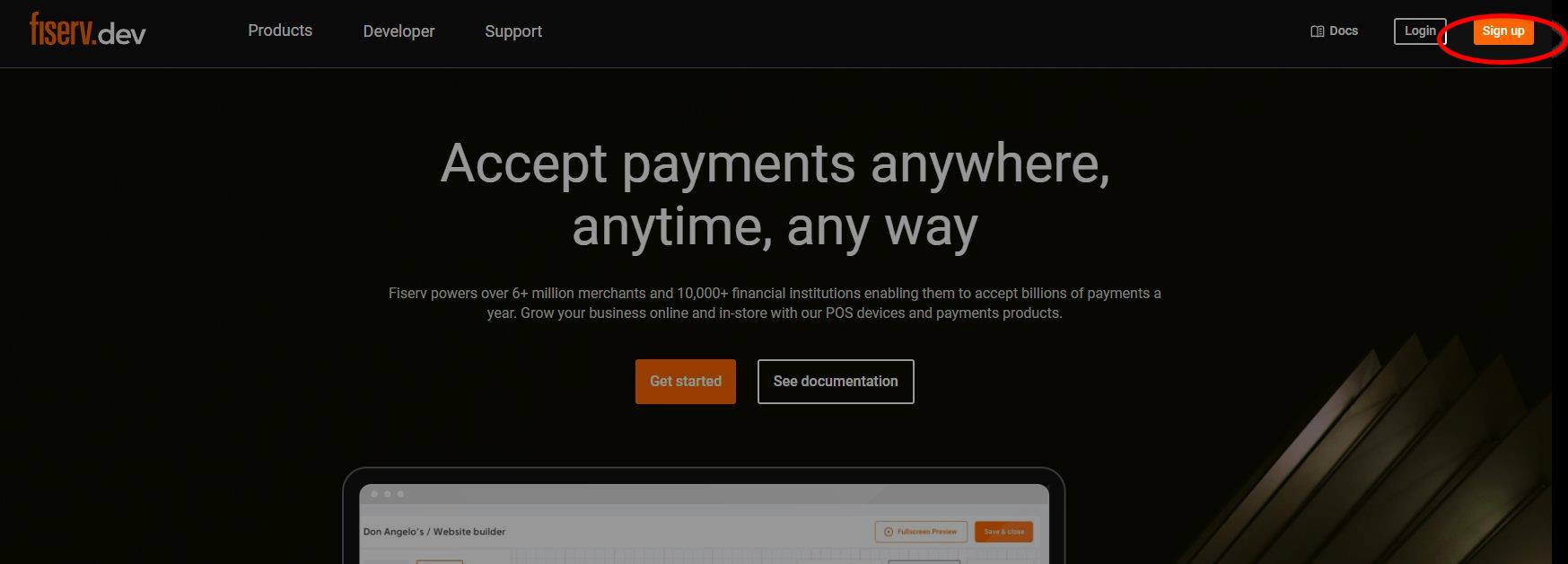
Begin your journey by heading to Fiserv’s Developer Portal. Just click on this link: https://fiserv.dev/.
Once there, spot the “Sign up” button in the top right corner. Alternatively, you can directly click “here”.
Step 2: Register and Set Up Your Account
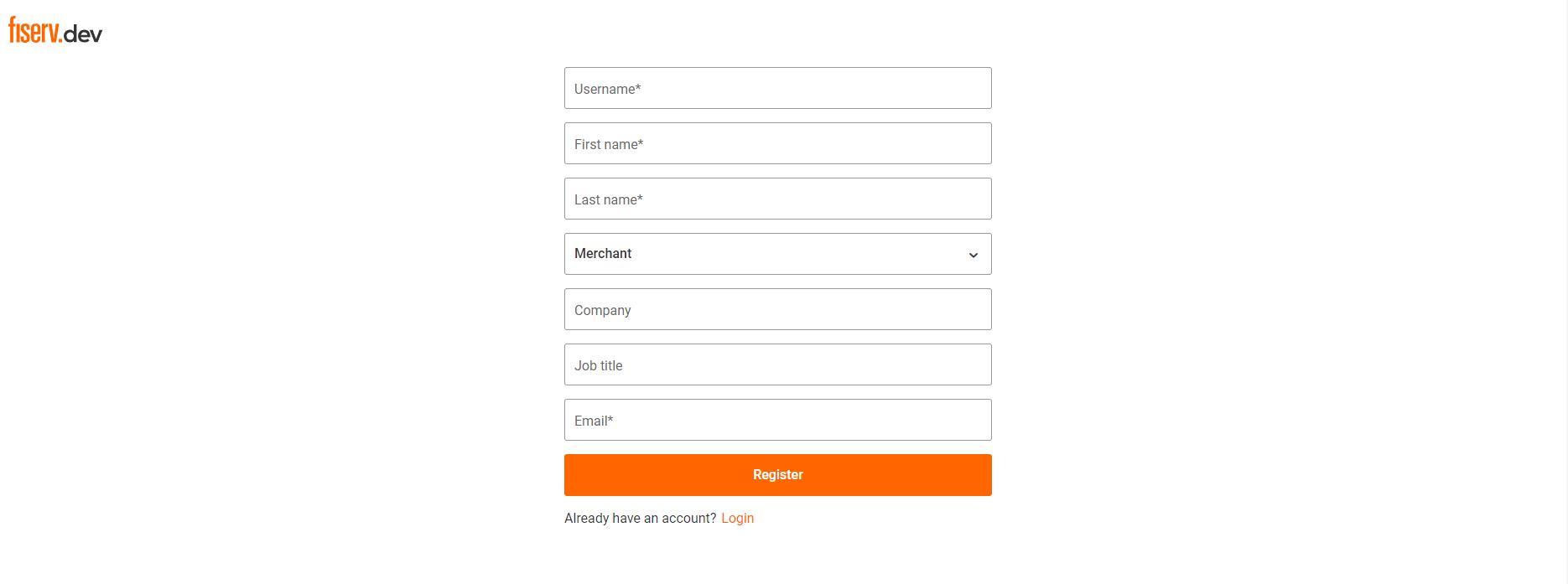
On the sign-up page, fill in your details to register:
- Username
- First Name
- Last Name
- Choose “merchant” from the dropdown
- Company
- Job Title
- Email Address
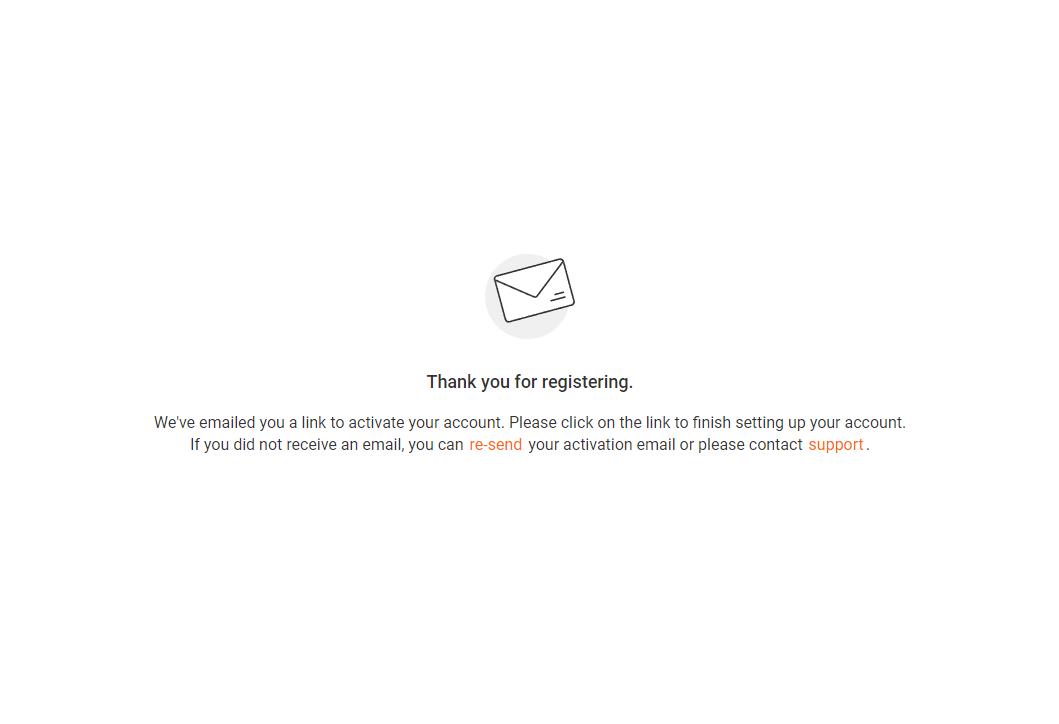
After registering, an activation email will land in your inbox. Click on “Activate your account” and you’ll receive a verification code in your email.
Enter the verification code on the activation page. Remember to jot down your username and create a new password for logging in.
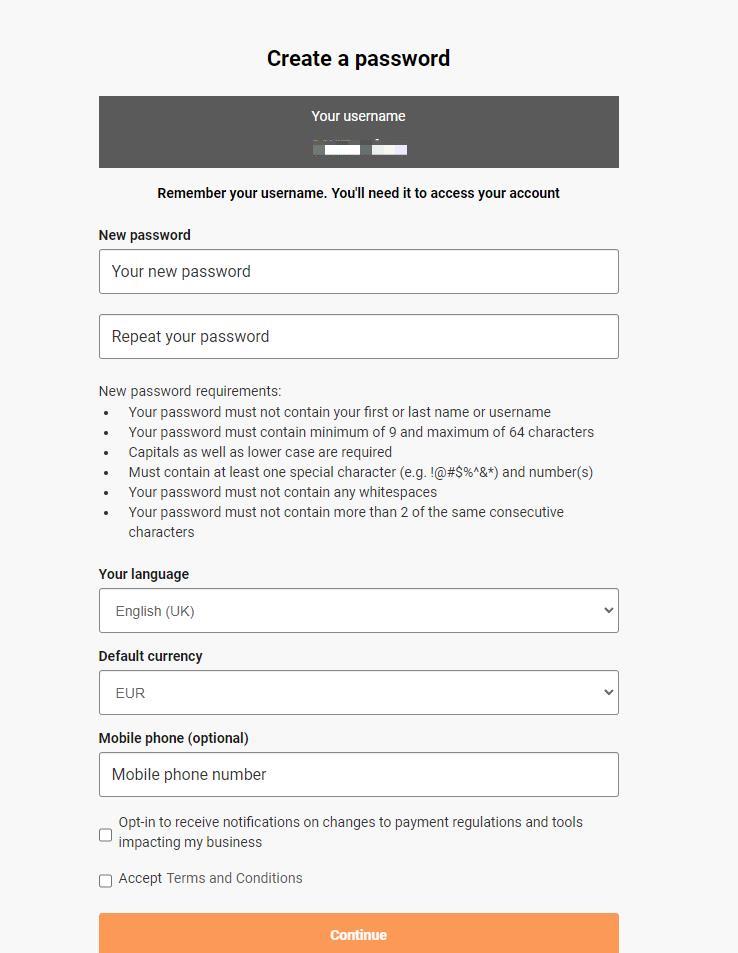
Choose your language, select EUR as currency, and you can also add your mobile number if you wish. Tick the terms and conditions box and hit continue. Don’t miss any steps, or you won’t see the continue button.
Step 3: Setting Up Multi-Factor Authentication and Logging In
In this step, you’ll set up multifactor authentication. We recommend using the one-time password via email.
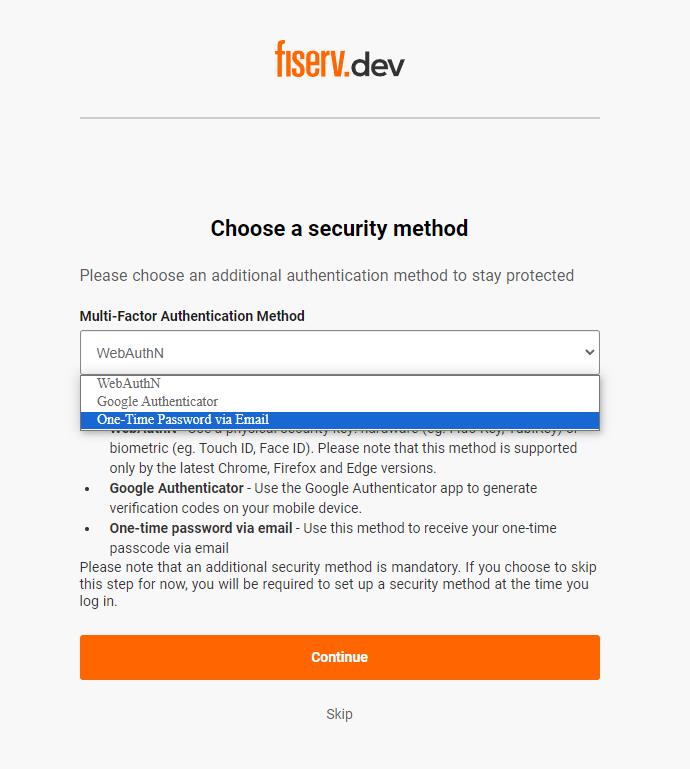
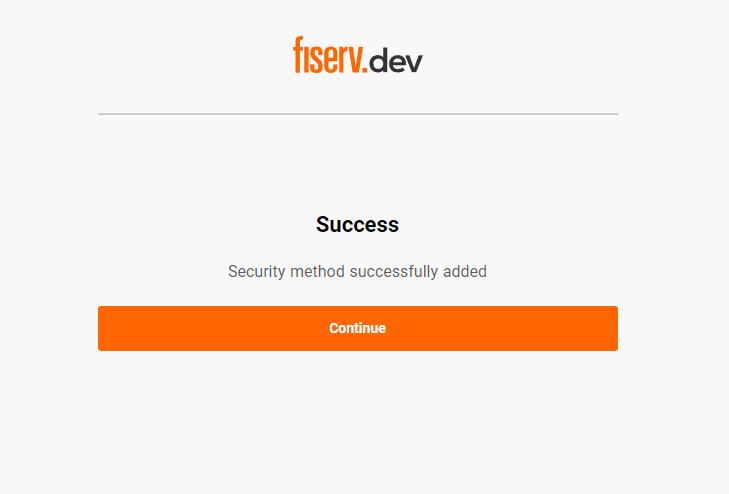
Once you’ve made your choice, hit continue. After successfully creating your account, select continue again. You’ll be notified that your account is ready, and you can proceed.
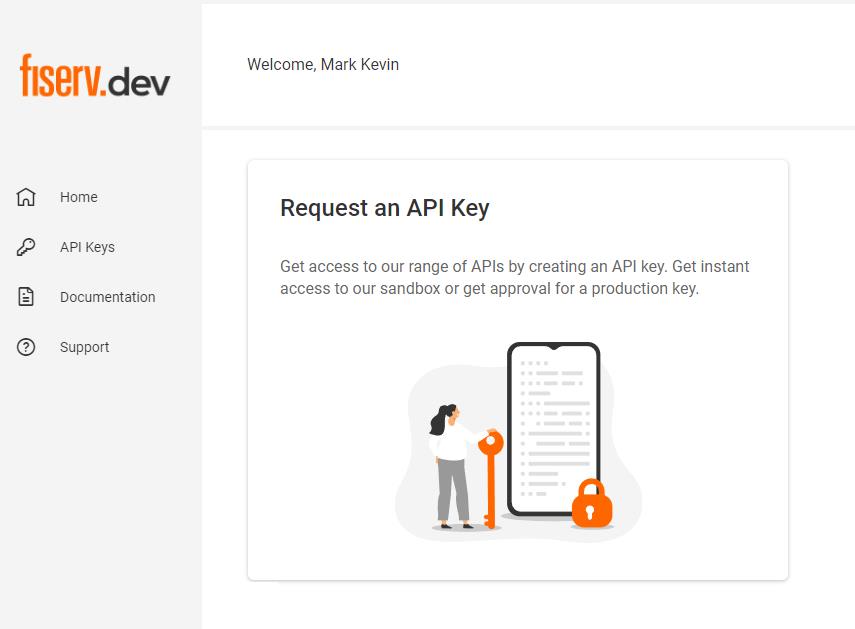
Now, you’ll need to log in again, and you’ll see the option to request an API Key.
Step 4: Requesting Your REST API Key
Here’s the final step – requesting your new REST API Key.
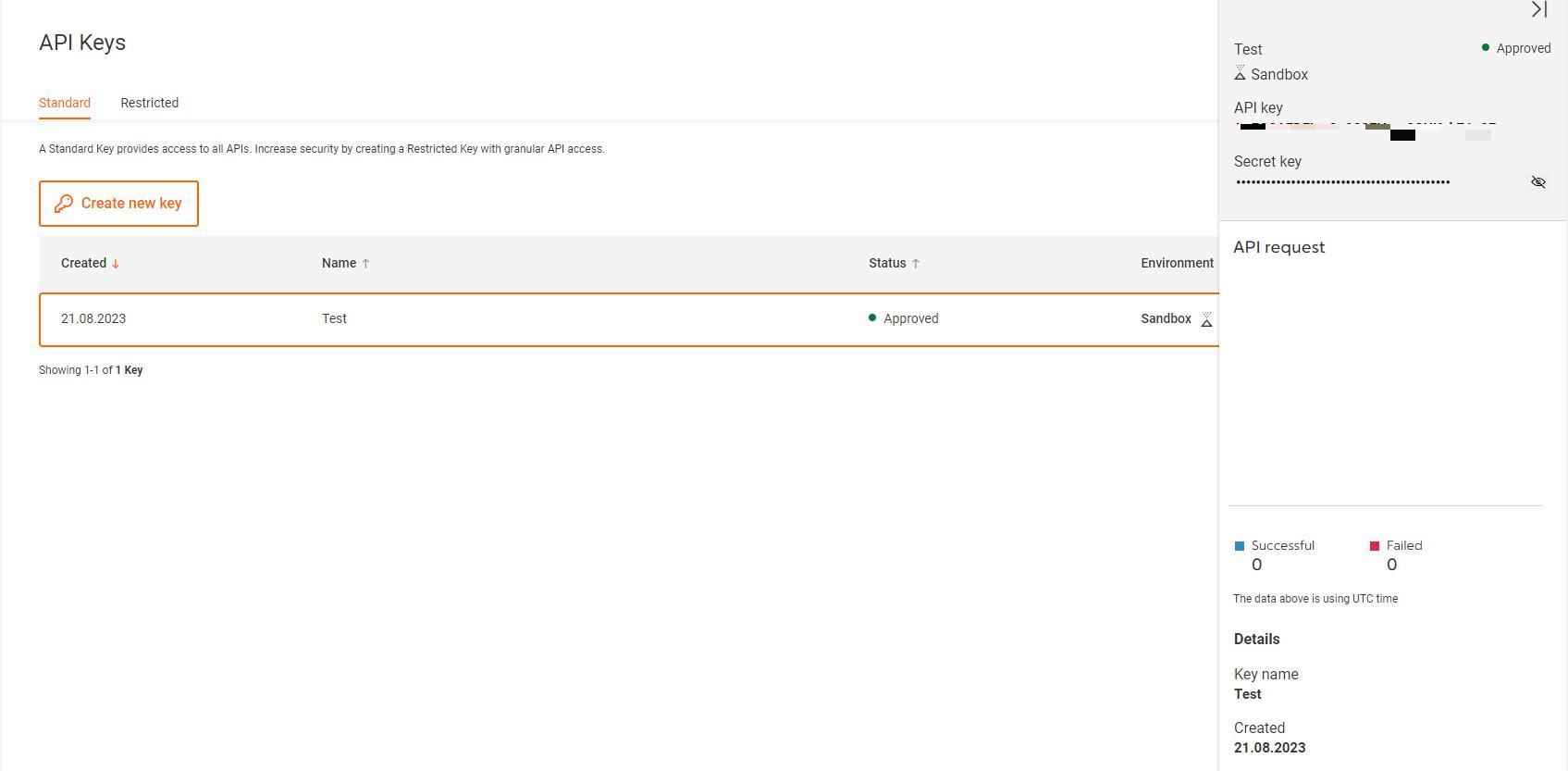
From the homepage, click on “Request an API Key.” In the Standard tab, hit “Create new key.”
- Choose Sandbox or Production
- Name the key appropriately
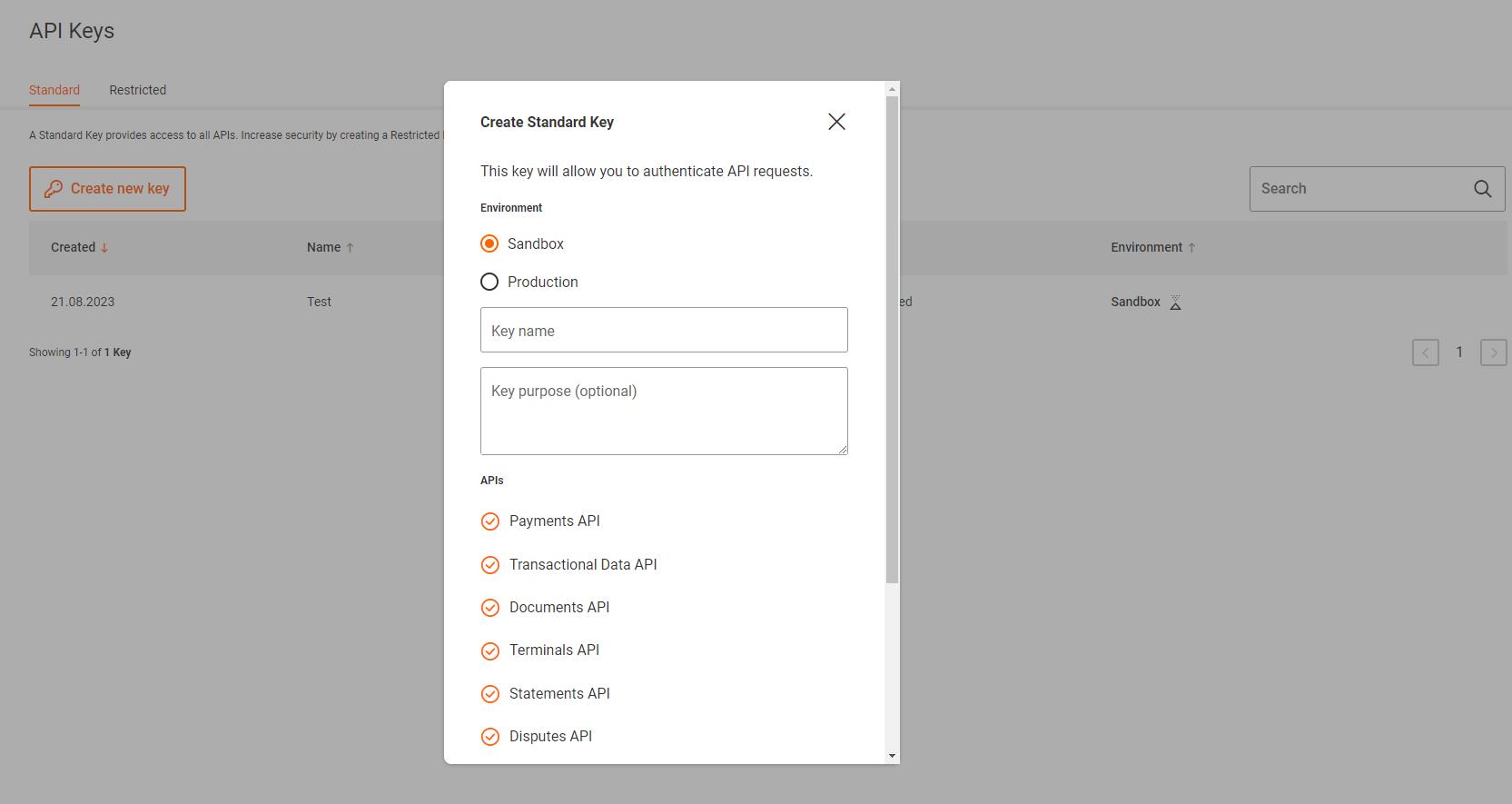
Click “Create key.” Once it’s generated, you can click on it to view your API details and the Secret key.
Important Notes for Sandbox and Production
Sandbox (Test)
After getting your API Secret and Key for Sandbox, remember to email cardnetipg@fiserv.com. Provide them with:
- App name
- Store ID you want linked
- Your account’s email address
Once this linkage is done, you can use your Sandbox Rest API key and secret.
Production (Live)
For Production, you won’t receive your API Secret and Key right away. Email cardnetipg@fiserv.com with:
- App name
- Store ID you want linked
- Your account’s email address
Once the linkage is complete, you can then use your Production Rest API key and secret.
Setting up the New REST API in your WordPress dashboard
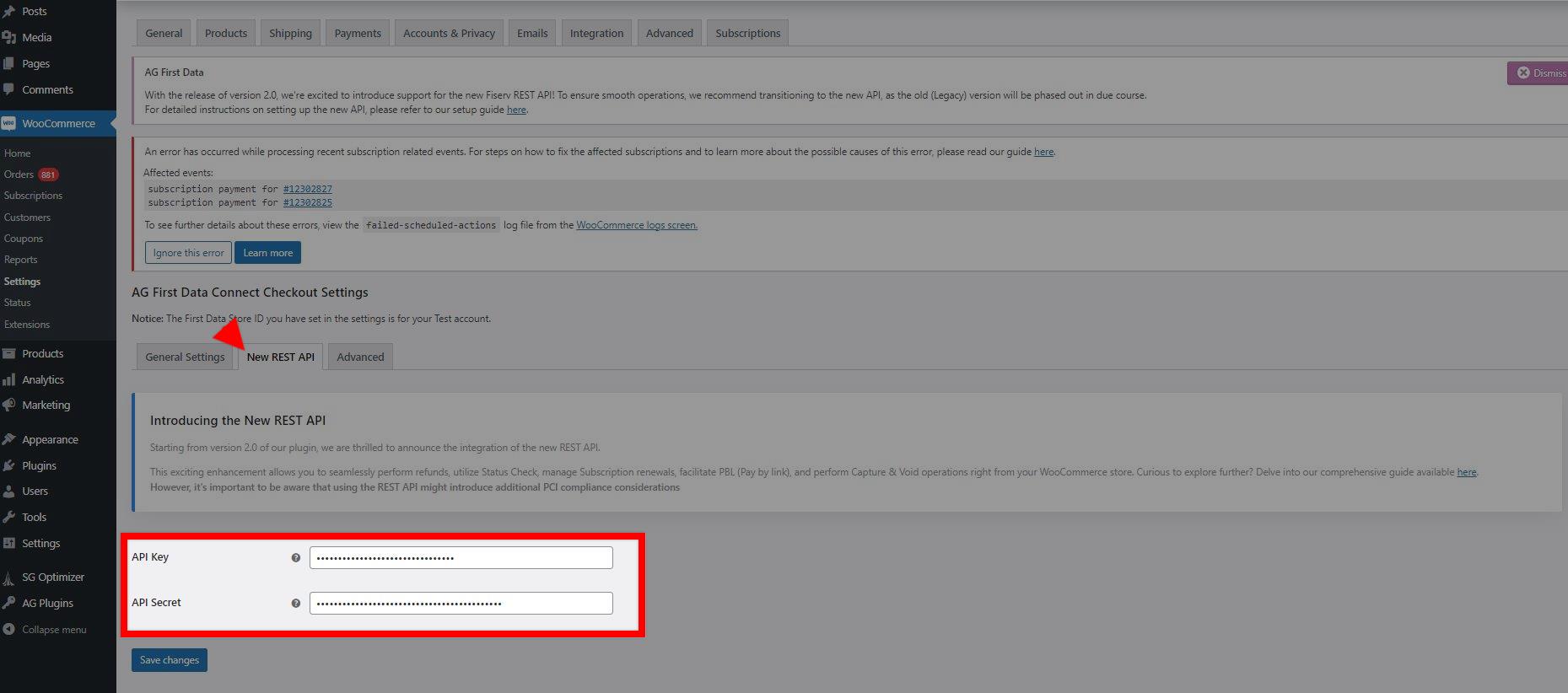
Once you have your account’s REST API Secret, and Key, you may now proceed in using them in your WordPress site’s dashboard. Here’s a detailed step-by-step guide on how you can proceed:
1.) Log in to your WordPress dashboard as the administrator.
2.) From the dashboard, click on WooCommerce -> Settings -> Payments.
3.) From the Payments page, click on the “Manage” button to access the AG Lloyds Cardnet Connect Checkout Settings. You will notice the New REST API tab where you can add the API Key, and Secret that you have for your Fiserv account.
That’s it! You’re now equipped with the knowledge to secure your REST API credentials and harness its power.
If you have any questions or need assistance, feel free to reach out to us.
Was this helpful?