How to Get Your API Credentials from the Developer Portal for Tyl Checkout
We’ve put together this quick guide to help you generate your API credentials from the Tyl by NatWest Developer Portal.
Let’s get started!
Sign up for a Developer Account
If you already have a NatWest Payments Developer account, you can skip this step and sign in.
Step 1: Register through the Developer Portal here.
Step 2: Verify your email address using the verification link sent to your inbox.
Step 3: Sign in to your developer account.

Create your API Keys
Once you’re signed in:
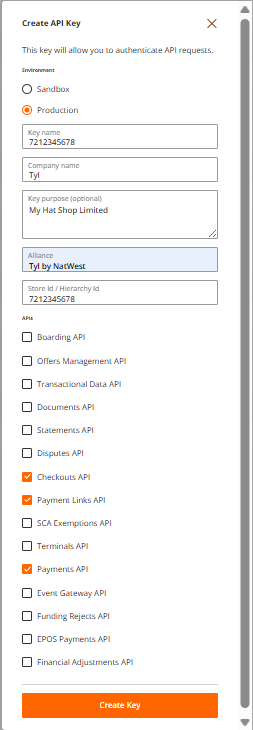
Step 4: Go to API Keys and select Create New Key.
Step 5: Complete the request form:
- Key Name / Store ID / Hierarchy ID: Enter your Store ID.
- Key purpose: Enter a name to identify the API key’s purpose (for example, Production API Key).
- APIs: Select the APIs required for your integration.
Important: Please ensure that all three APIs listed below are selected when creating the API key. These are the only API’s available for NatWest customers.
Payments API
Checkouts API
Payment Links API
Step 6: Click on “Create Key”.
Wait for Approval
NatWest Payments will review your request. Once approved, you’ll receive an email confirming that your API credentials are ready.
Retrieve Your API Credentials
After receiving the approval email, return to the API Keys page to view and retrieve your API credentials.
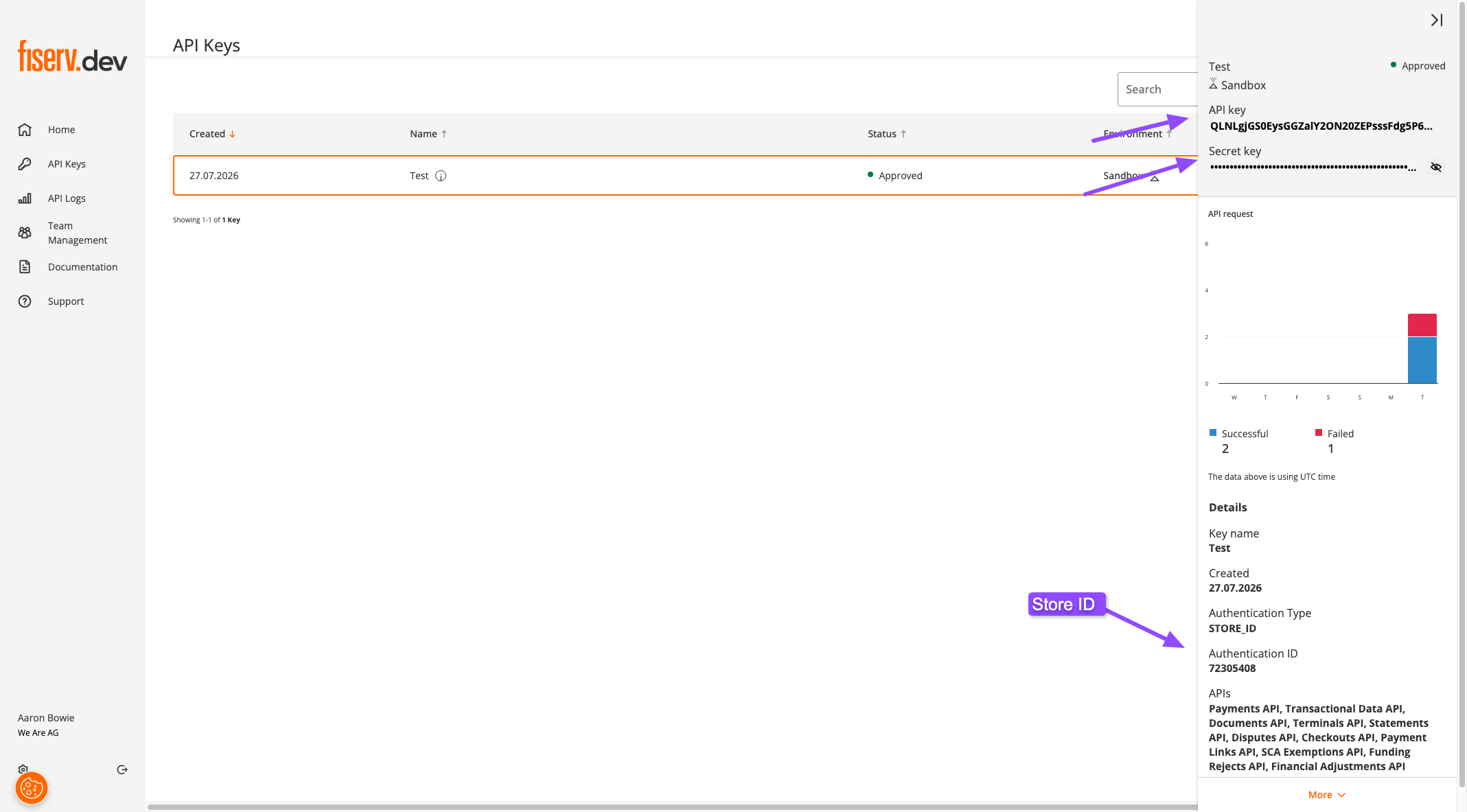
That’s it! You’re all set. You can now add your REST API keys on our plugin settings page. If you have any questions or need assistance, our support team is always here to help.
Was this helpful?